![Trustero_Logo_RGB_1C.png]](https://support.trustero.com/hs-fs/hubfs/Trustero_Logo_RGB_1C.png?height=40&name=Trustero_Logo_RGB_1C.png)
With this capability, evidence is automatically ingested from the document management systems your teams already use. This reduces the need for manual uploads and helps ensure that compliance evidence remains up to date.
Configure Document Management Receptors
The first step is to configure one or more document management receptors, which are used to connect your document repositories and enable folder synchronization.
Once configured, these receptors allow the system to scan repository folders and import evidence files into the Trustero platform.
You can view and manage receptor scans and repository folder scans directly from the Evidence page under the Automated Scans tab.
This information is also accessible from the top-level Integrations → Receptors menu.
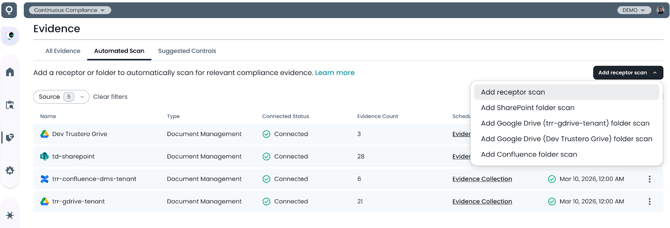
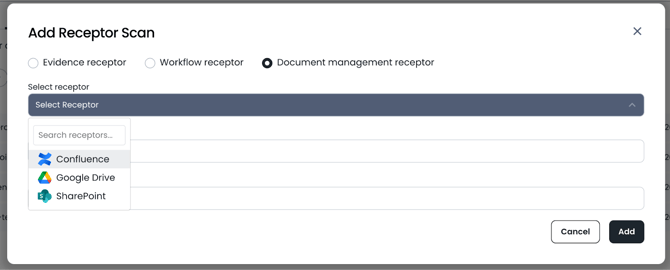
Add Document Management Receptor
Add Folder Scan
Once your document management receptor is configured, you can use the same menu to add a folder synchronization scan. If there are multiple repositories of the same type, you will see the name of the repository in the drop down menu.
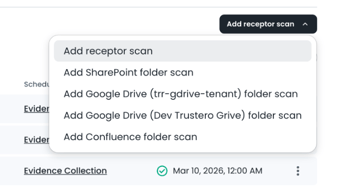
Select Root Folder to Synchronize
Use the document repository’s file picker to select the root directory you would like to synchronize.
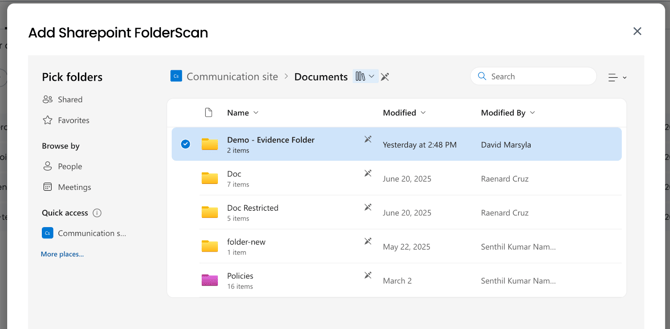
Select Folder to Synchronize
Add and Configure Folder Scan
From the selected root folder, you can scan all subdirectories or selectively choose which directories to include when searching for files. You can also apply file filters to import only documents that match a specific pattern, such as *Meeting* or Policy*.
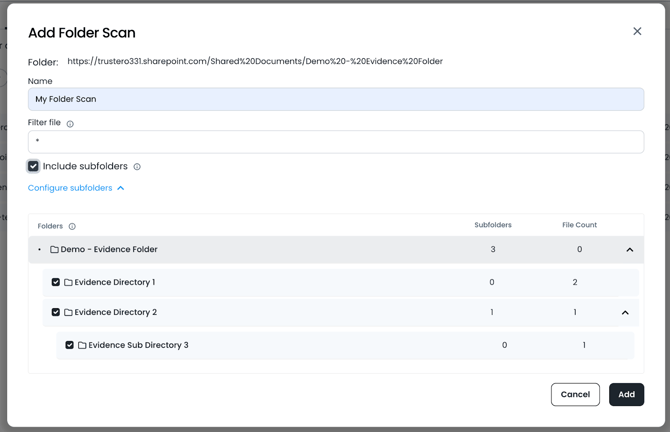
Configure Sub-Folders
Automatically Assign to Control(s)
If evidence from the folder you are scanning should be automatically assigned to one or more controls, you can select "Assign to controls" and select where the evidence should be routed.
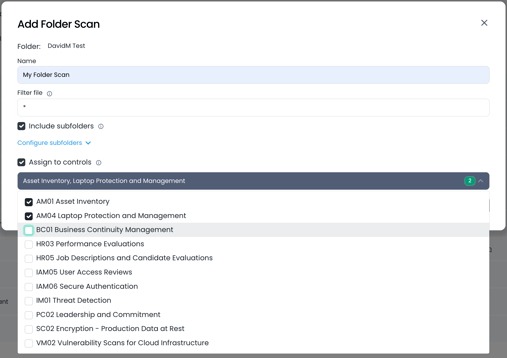
Assign to Controls
Include Attachments as Evidence
For the Confluence Folder Scans, we've added the ability to also include attached images or documents as stand-alone pieces of evidence.
Select the "Include attachments" option in the folder scan dialog. Since attached documents may not have easily understandable names, you can also create an "Evidence prefix" which will be prepended to the name of the evidence to help identify its source.
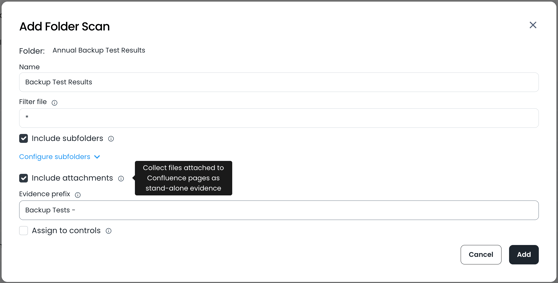
Include Attachments as Evidence
View Folder Scans
After a folder scan is configured, the selected directory is scanned recursively, and all discovered documents are imported into the Trustero system as evidence.
You can view your configured folder scans from the Automated Evidence tab or from the document management receptor details page.
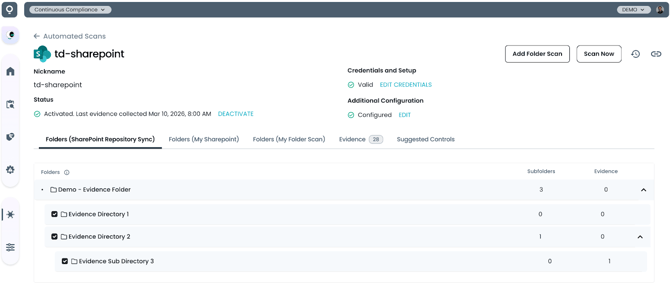
View Folder Scans
Mapping Evidence to Controls
Once evidence is imported, Trustero automatically analyzes it and suggests relevant control mappings using our AI-powered Evidence-to-Control mapping capability.
Open the Suggested Controls tab to review recommended control matches. With a single click on the plus icon, you can assign the evidence directly to the suggested control.
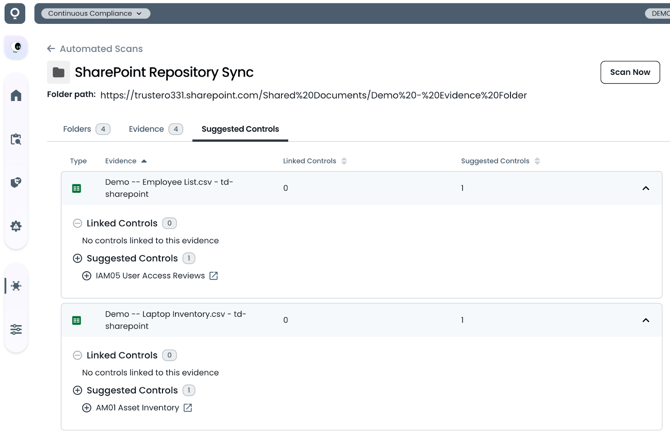
Suggested Control Mapping
Schedule Document Management Receptors
By default, document management receptors run on the same weekly schedule as other evidence receptors. If more frequent synchronization is required, you can configure a custom schedule to ensure documents are imported in a timely manner.
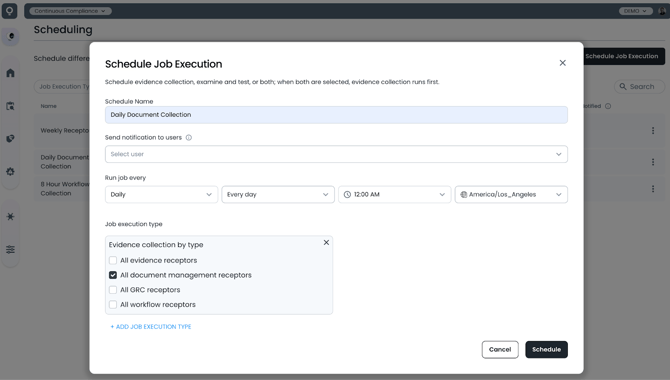
Schedule Document Receptors
This folder synchronization capability makes it easier to incorporate existing documentation workflows into your compliance program. By automatically importing evidence from document repositories, teams can reduce manual uploads while ensuring that compliance evidence stays current as documentation evolves.