![Trustero_Logo_RGB_1C.png]](https://support.trustero.com/hs-fs/hubfs/Trustero_Logo_RGB_1C.png?height=40&name=Trustero_Logo_RGB_1C.png)
To add frameworks from the Trustero catalog to your account, start by navigating to the Frameworks page in the Trustero application.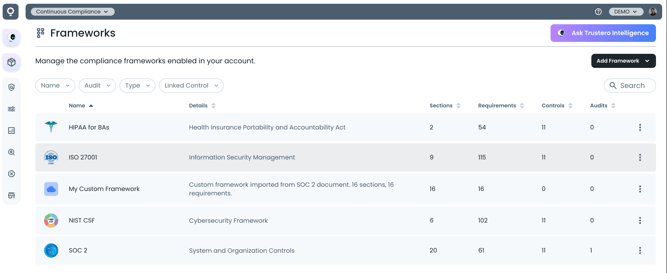
Framework List Page
From the Frameworks page, select Add Framework / Add from catalog to launch the import wizard. The wizard will guide you through importing a pre-defined framework from the Trustero catalog, along with any associated example controls and policies.
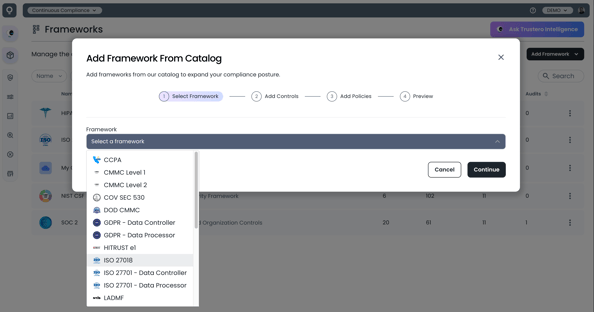
Framework Import Wizard
During the import process, you can choose whether to include the example controls and policies provided with the framework. If you prefer to use your own controls, simply deselect the example controls and policies in the wizard. This will import only the framework structure, including its sections and requirements, allowing you to map them to your existing or custom controls.
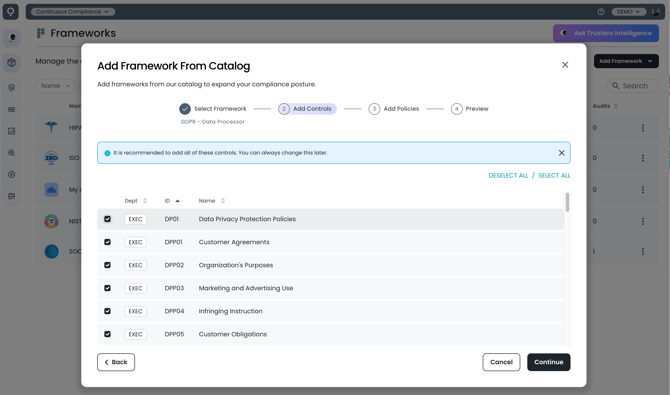
Import Wizard - Control Selection
Many frameworks in the Trustero catalog share common controls and policies. When importing a new framework, Trustero automatically detects controls and policies that already exist in your account. Only new items will be presented for import, while existing controls and policies are automatically mapped to the appropriate requirements within the newly added framework.