![Trustero_Logo_RGB_1C.png]](https://support.trustero.com/hs-fs/hubfs/Trustero_Logo_RGB_1C.png?height=40&name=Trustero_Logo_RGB_1C.png)
When you sell to larger enterprise customers, they often send a security questionnaire that must be completed before they'll sign. These questionnaires arrive in every format, from spreadsheets to Word documents and PDFs, and answering them by hand means hunting through policies, controls, and past answers for the same information again and again.
Customer Questionnaires in Trustero handles this end to end with Trustero Intelligence playbooks. A playbook combines Trustero's AI prompts, agents, and tools to carry out a multi-step task. With the questionnaire playbooks you can:
- Import a questionnaire in any common format. Trustero converts it into a structured questionnaire that supports free-form text answers, single or multiple-choice answers (including yes/no), and answers with document attachments.
- Answer it automatically from the sources you choose: your account's policies, controls, evidence, and company information, plus documents in the questionnaire Knowledge Base, such as previously answered questionnaires. You can also answer or adjust any question yourself.
- Export the answers back into the original document, so you can return the questionnaire in the format you received it.
This article walks through the full process. Uploading documents to the questionnaire Knowledge Base isn't covered here.
Step 1: Open Customer Questionnaires
From the left navigation, open Customer Questionnaires. Questionnaires you've received are listed on the Vendor Questionnaires tab, which is empty until you import your first one.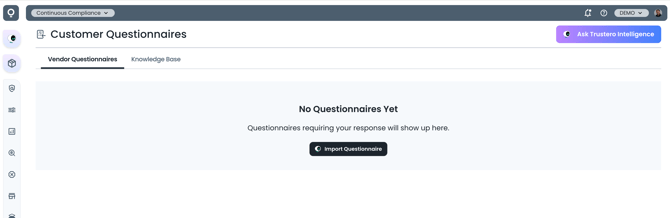
The Customer Questionnaires page before any questionnaires are imported
Step 2: Open the questionnaire playbooks
Click Ask Trustero Intelligence. The Trustero Intelligence panel opens on the side and shows the playbooks for this page: Import Questionnaire, Answer Questionnaire, and Export Questionnaire. Select Import Questionnaire.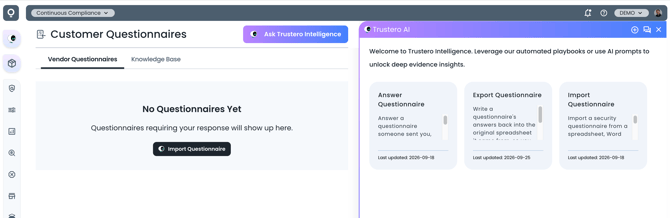
Questionnaire playbooks in the Trustero Intelligence panel
Step 3: Choose the file to import
The Import Questionnaire playbook asks for the questionnaire file (XLSX, XLS, CSV, DOCX, or PDF) and a name to save it under. Upload the file, enter a name, and click Confirm selections.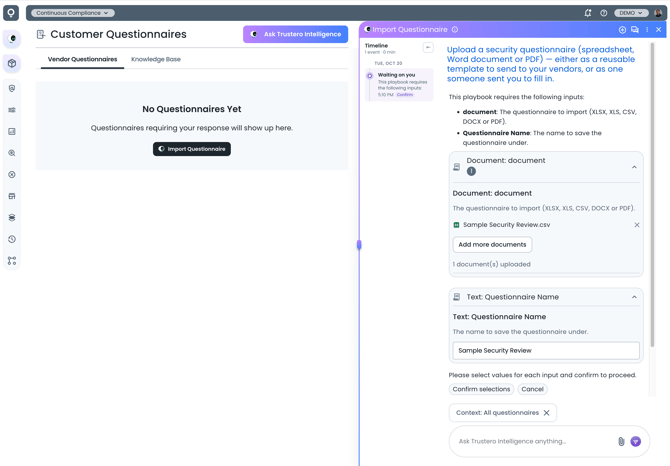
Uploading the questionnaire and naming it
Step 4: Review and approve the import
Trustero reads the file and shows a preview of what it found: each section, each question, and its answer type. The preview also shows follow-up details the questionnaire asks for, such as a file to attach when the answer is "Yes", and sections that only apply based on an earlier answer. The playbook also asks who sent you the questionnaire and when it's due.
If the preview looks right, click Approve. Otherwise, click Regenerate or describe what should change.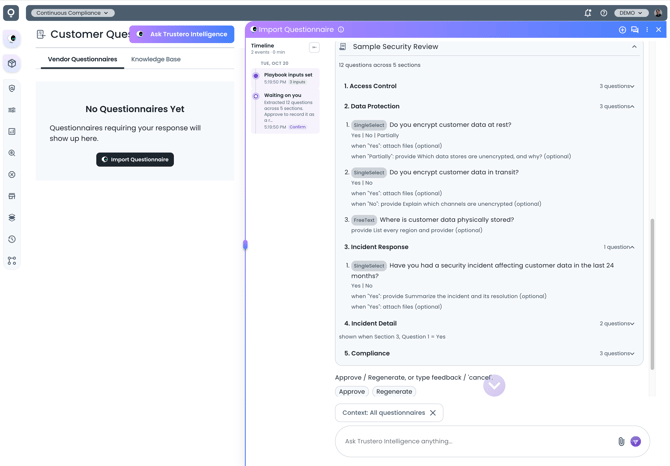
Previewing the imported questionnaire before approving it
Step 5: Find the new questionnaire
Once the import is approved, the questionnaire appears on the Vendor Questionnaires tab with the requesting organization, due date, status, and assignee.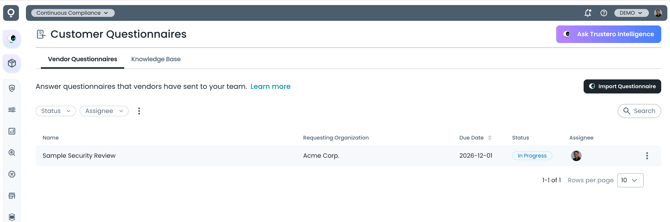
The imported questionnaire on the Vendor Questionnaires tab
Step 6: Open the questionnaire
Click the questionnaire to open it. The Sections list on the left shows how many questions in each section are answered, and each question shows the answer type it expects, such as a set of choices or a free-form text box. You can answer questions here directly.
If something wasn't imported quite right, switch from Answer to Edit at the top of the page. Edit mode looks much the same, but lets you change the questions and answer options themselves.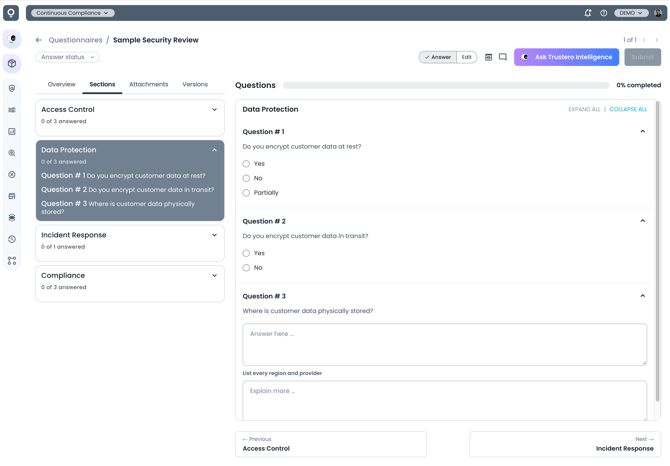
A questionnaire with multiple-choice and free-form questions
Step 7: Choose the sources for answers
Click Ask Trustero Intelligence again and select Answer Questionnaire. The playbook asks which sources the answers should come from: policies, controls, evidence, company information, and the documents in your Knowledge Base. Approved answers in your Knowledge Base are used first.
Untick anything you want left out. Some teams prefer to answer only from their Knowledge Base, for example. In this example, policies, controls, company information, and a previously answered questionnaire are selected. Click Answer from these to continue.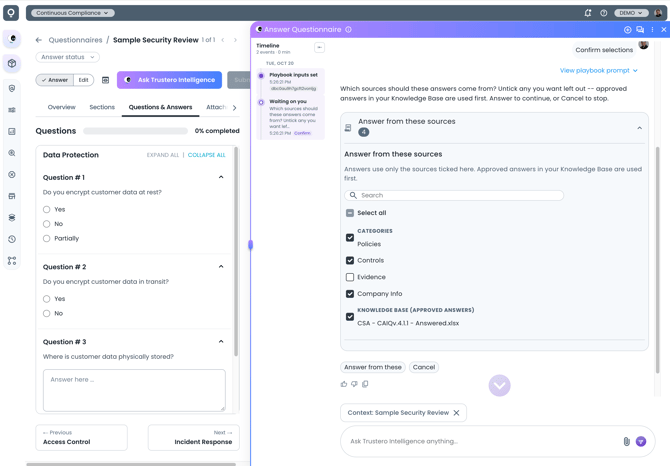
Choosing the sources Trustero Intelligence uses for answers
Step 8: Review the answer report
Trustero Intelligence answers the questions and shows a report before anything is saved to the questionnaire. The report shows:
- how many questions were answered, and how many couldn't be answered from the selected sources;
- questions that were skipped, either because they were deselected or because an earlier answer means they don't apply;
- answers that need attention before they go out, such as a contradiction or sources that disagree, listed by section and question;
- documents attached to the answers. Uncheck any attachment that shouldn't be sent.
Each proposed answer includes the reasoning behind it. Approve to save the answers, or describe what you'd like changed.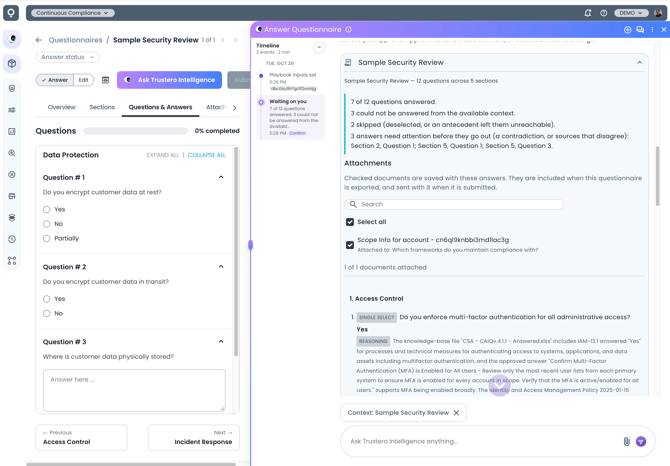
The answer report from the Answer Questionnaire playbook
Step 9: Check each answer
After you approve, the answers are saved to the questionnaire and the progress bar updates. Each question is labeled Fully answered, Partially answered, or not answered. Expand Why this answer below a question to see the rationale, anything that was missing, and links to the evidence and sources that were used.
A question flagged Needs review means Trustero found conflicting information in your sources, so the answer deserves a closer look. Why this answer explains the conflict. Once you've checked the answer, you can clear the flag.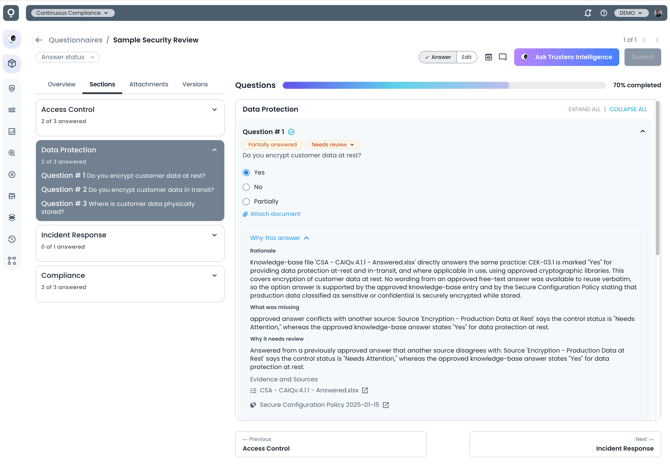
An answered question with its status, review flag, and reasoning
Step 10: Export the answered questionnaire
When the answers are ready, click Ask Trustero Intelligence and run Export Questionnaire. Trustero writes your answers back into the format of the original questionnaire, so you can return it the way you received it. If any answers include attachments, you download a .zip file containing the questionnaire and the attached documents, and the questionnaire indicates which question each attachment belongs to. A summary report shows how many answers and attachments were exported.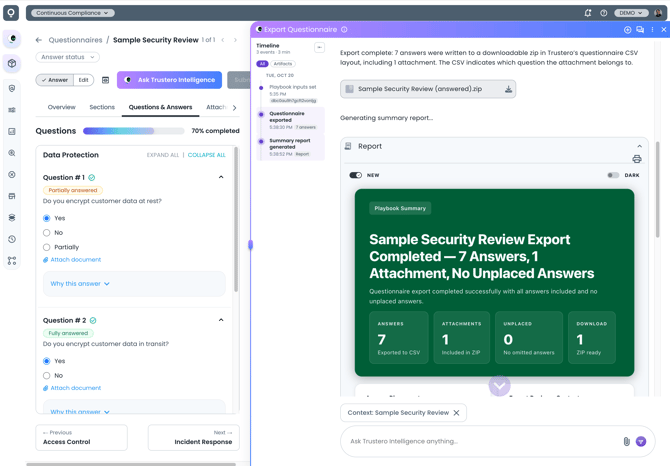
The export summary after answers are merged back into the original format