![Trustero_Logo_RGB_1C.png]](https://support.trustero.com/hs-fs/hubfs/Trustero_Logo_RGB_1C.png?height=40&name=Trustero_Logo_RGB_1C.png)
Trustero’s Jira workflow integration allows you to connect evidence-gathering workflows in Jira directly with Trustero, reducing manual effort and enabling smoother collaboration between systems.
The integration enables you to:
- Create Request for Evidence issues in Jira projects for specific control(s)
- Create Request for Attestation issues in Jira projects for specific vendors
- Create Request for Policy Document issues in Jira projects for specific policies
- Collect the attachments as evidence within Trustero when issues are set to Done
- Link existing issues within Jira by updating the issue’s label and the title with the matching request ID
Enabling the Jira Workflow Management Integration
To enable the Jira Workflow Management Integration, navigate to the Receptor list page and select "Add receptor scan" from the button on the upper right of the page.
Select the "Workflow receptor" option in the creation dialog and choose "Jira" from the list of available workflow receptors.
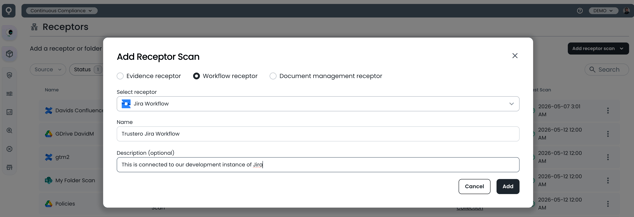
Add the Jira Workflow and configure the following fields:
- Site URL - Base url of your Jira instance (e.g. example.atlassian.net)
- Label - Jira Label to be used to identify tickets to be created/linked
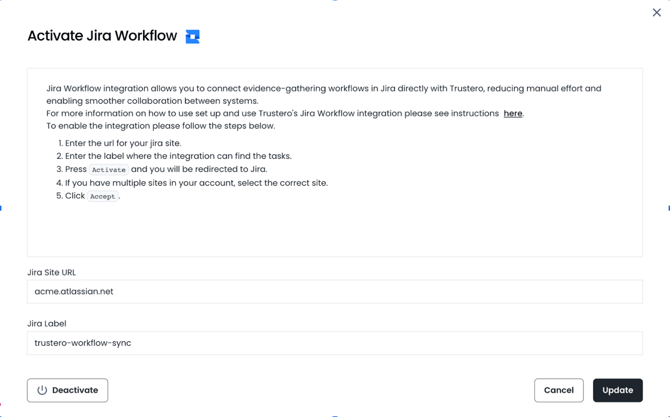
You will be redirected to Jira Permissions page, click Accept
Next you will be redirected back to Trustero to finish the setup and configuration.
You can optionally create saved project mappings to simplify linking Jira tickets in the future with a saved configuration. If you skip this step, you can choose the mappings on the fly when a ticket is created.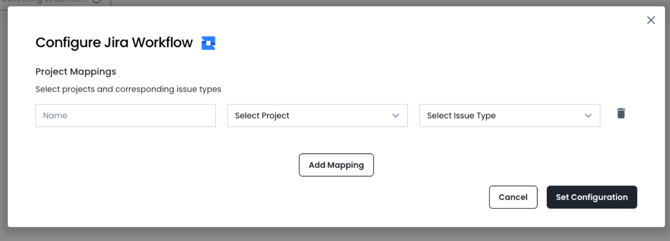
Select the projects within Jira that the integration has access by providing the following information
- Name: Nickname for the setting (e.g. Engineering, HR, etc)
- Project: Project where ticket would be created
- Issue Type: Type of Jira issue to be created
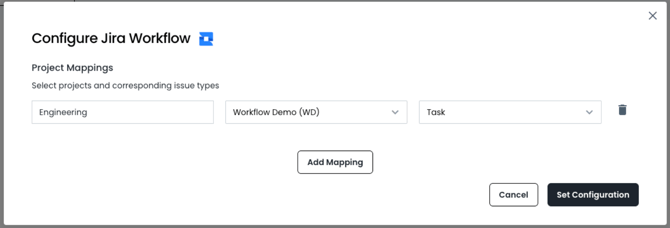
Click Set Configuration