![Trustero_Logo_RGB_1C.png]](https://support.trustero.com/hs-fs/hubfs/Trustero_Logo_RGB_1C.png?height=40&name=Trustero_Logo_RGB_1C.png)
What you get
Trustero posts compliance activity into Microsoft Teams: audit request updates, control and policy changes, questionnaire progress, and vendor responses. Each notification is a card with a button that opens the record in Trustero.
There are two ways to receive them, and you can use both:
- Organization channels. An administrator connects Trustero to your Microsoft 365 tenant once, then picks which Teams channels receive which events.
- Personal direct messages. Any Trustero user adds the Trustero AI app to their own Teams and chooses which events reach them as a direct message.
The app is published in the Microsoft Teams app store as Trustero AI for US customers and Trustero AI EU for EU customers. Setup takes about ten minutes for the organization and about two minutes per person.
Before you start
You need three people, and they can be the same person.
| Who | Needed for | Role required |
|---|---|---|
| Microsoft 365 administrator | Approving the connection between Trustero and your tenant (once) | Global Administrator in Microsoft 365 |
| Teams app installer | Adding the Trustero AI app to each team that should receive notifications | Team owner, or Teams admin rights |
| Trustero administrator | Activating Teams and choosing channels and events in Trustero | Trustero Admin role |
Connect your Microsoft tenant to one Trustero organization only. If your company has more than one (for example a sandbox), decide which one should receive notifications before you begin.
Set up notifications for your organization
A Trustero administrator does this once. Steps 1 and 2 must be done in order.
- Connect Trustero to your Microsoft tenant. In Trustero, open Account Settings → Notification settings and click Activate on the Teams card. A Microsoft consent page opens. A Microsoft 365 Global Administrator signs in and clicks Accept. You are returned to Trustero and the card shows Connected.
- Add the Trustero AI app to your teams. In Microsoft Teams, open Apps, search for Trustero AI (or Trustero AI EU), and choose Add to a team. Repeat for every team that has a channel you want notifications in.
- For a shared or private channel, also add the app inside that channel: open the channel's ⋯ menu → Manage channel → Apps → add Trustero AI.
- Choose channels in Trustero. Back in Account Settings → Notification settings, click Add Teams channel. The dialog lists your teams and channels. Channels in teams where the app is not installed yet appear dimmed. Select the channels you want and save.
- Choose which events go where. A routing table appears under the Teams card. Tick the event types (request updates, assignments, policy changes, and so on) for each channel and save.
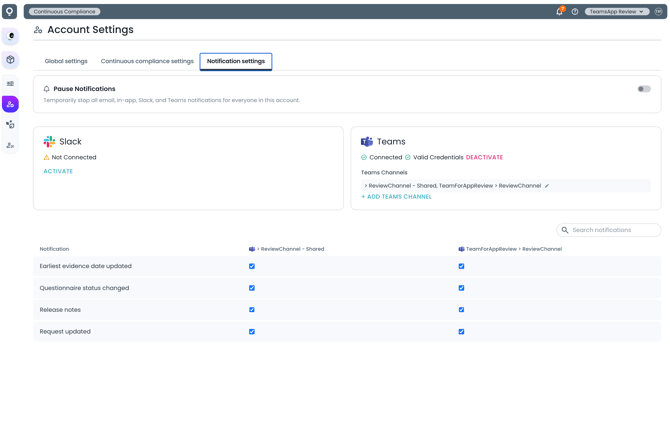
- Test it. Change the assignee on any request in Trustero. Within a few seconds a Trustero AI card appears in the channel, with a button that opens the request.
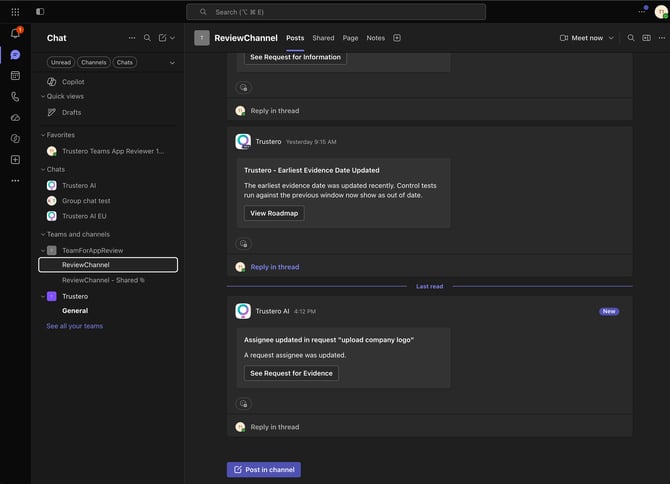
To stop notifications to one channel, remove it from the Teams card. Deactivate removes the whole connection and every channel and rule; reconnecting requires Microsoft admin consent again.
Get notifications as personal direct messages
Any Trustero user can do this for themselves. Your organization must have completed step 1 above first, so the app knows which Trustero account your tenant belongs to.
- Activate Teams in Trustero. Open Your Preferences → Notification Settings and click Activate on the Teams card. Teams opens and asks you to add Trustero AI. Click Add.
- If Teams does not open, go to Apps in Teams, search for Trustero AI (or Trustero AI EU), and choose Add for me.
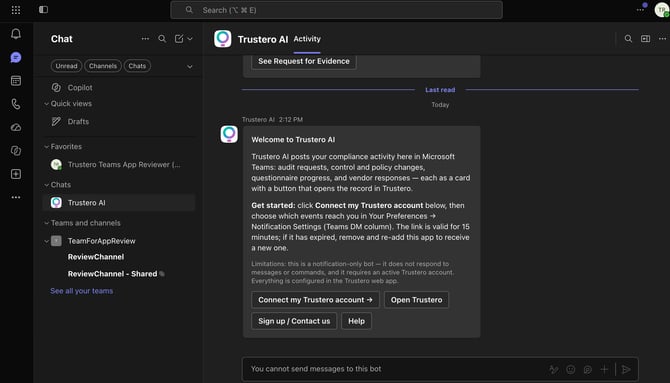
- Link your account. Trustero AI sends you a welcome card in a personal chat. Click Connect my Trustero account. You return to Trustero and the Teams card shows Connected.
- The link is valid for 15 minutes. If it has expired, remove the app from Teams and add it again to get a fresh card.
- The link is valid for 15 minutes. If it has expired, remove the app from Teams and add it again to get a fresh card.
- Choose your events. A Teams DM column now appears in your notification preferences on the same page. Tick the events you want as direct messages, for example items assigned to you.
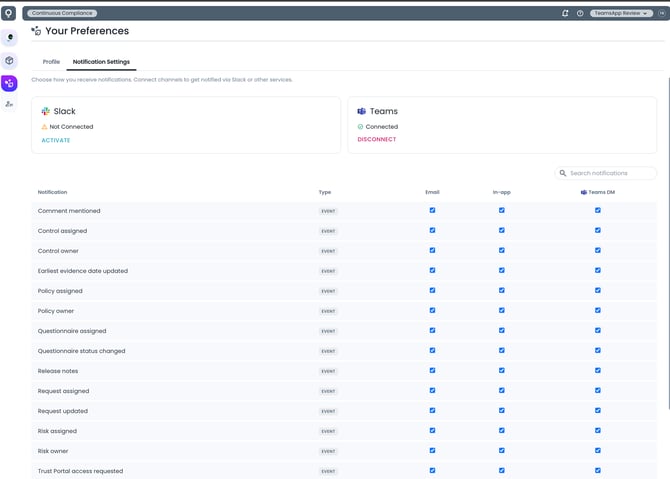
When a matching event happens, a card arrives in your Trustero AI chat. Click Disconnect on the Teams card at any time to stop.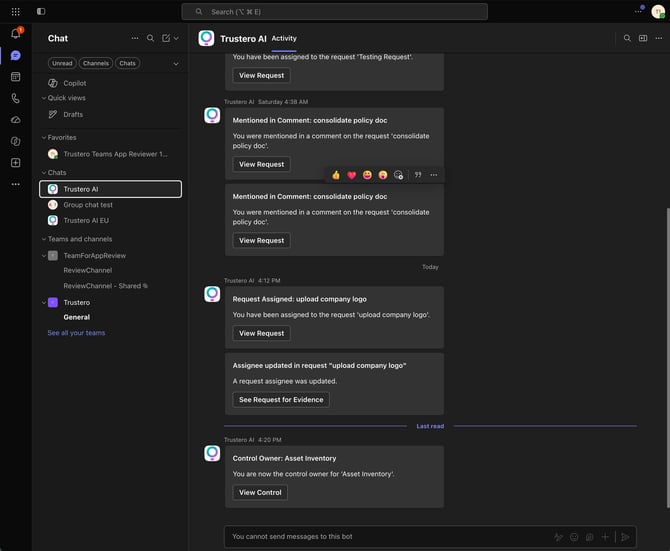
Troubleshooting
| What you see | What to do |
|---|---|
| Activate shows "Microsoft requires an administrator to grant admin consent" | A non-admin clicked Activate. Ask a Microsoft 365 Global Administrator to sign in to Trustero and click Activate, or to accept the consent page when Microsoft shows it. |
| "No channels available" when adding a channel | The app is not added to any team yet (organization step 2), or the tenant connection (step 1) was not completed. Do both, then reopen the dialog. |
| A channel is dimmed in the picker | The app is not installed in that channel's team. Add it to the team first. For shared and private channels, also add it inside the channel. |
| Channel is connected but nothing arrives | Check the routing table under the Teams card: the event type you triggered must be ticked for that channel. |
| Personal welcome card never arrives | Your organization has not completed step 1, so the app cannot find your Trustero account. Once it has, remove the app from Teams and add it again. |
| "Could not connect Teams, the link may have expired" | The welcome card link is valid for 15 minutes. Remove the app from Teams and add it again for a new card. |
| The bot does not reply when you message it | Expected. Trustero AI only posts notifications; it does not chat. Everything is configured in Trustero. |
Still stuck? Contact support@trustero.com.