![Trustero_Logo_RGB_1C.png]](https://support.trustero.com/hs-fs/hubfs/Trustero_Logo_RGB_1C.png?height=40&name=Trustero_Logo_RGB_1C.png)
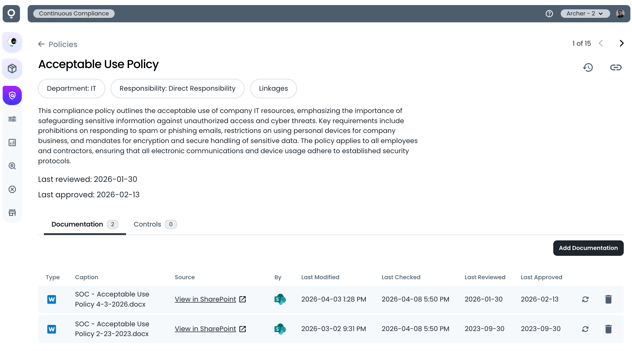
With this feature, policy documents are automatically ingested from the systems your teams already use. This reduces the need for manual uploads and helps ensure that compliance policies remain up to date.
How Policy Synchronization Works
When a policy document is discovered during a folder scan, Trustero attempts to match it to an existing policy.
- If a matching policy is found, the document is added as a new version of that policy
- If no match is found, a new policy is created automatically
For newly created policies:
- A summary is generated based on the document content
- Key metadata, such as last reviewed date and last approved date, is extracted when available
Configure Document Management Receptors
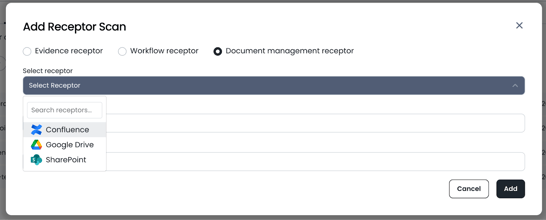
To begin, configure one or more document management receptors. Receptors connect your document repositories and enable folder synchronization.
Once configured, receptors allow Trustero to:
- Scan repository folders
- Import policy documents into the platform
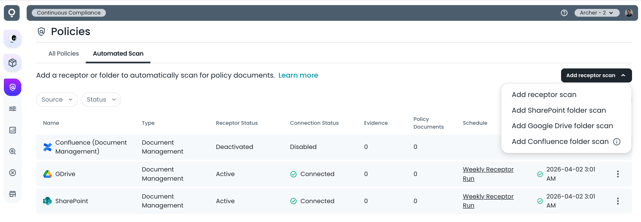
You can manage receptor scans and folder scans from:
- The Policies page under the Automated Scans tab
- The Integrations → Receptors menu
Add Folder Scan
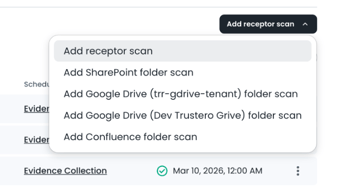
Once your document management receptor is configured, you can use the same menu to add a folder synchronization scan. If there are multiple repositories of the same type, you will see the name of the repository in the drop down menu.
Select Root Folder to Synchronize
Use the document repository’s file picker to select the root directory you would like to synchronize.
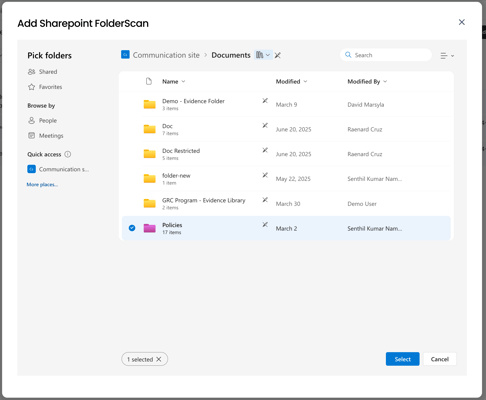
Select Policy Folder to Synchronize
Add and Configure Folder Scan
From the selected root folder, you can scan all subdirectories or selectively choose which directories to include when searching for files. You can also apply file filters to import only documents that match a specific pattern, such as *Meeting* or Policy*.
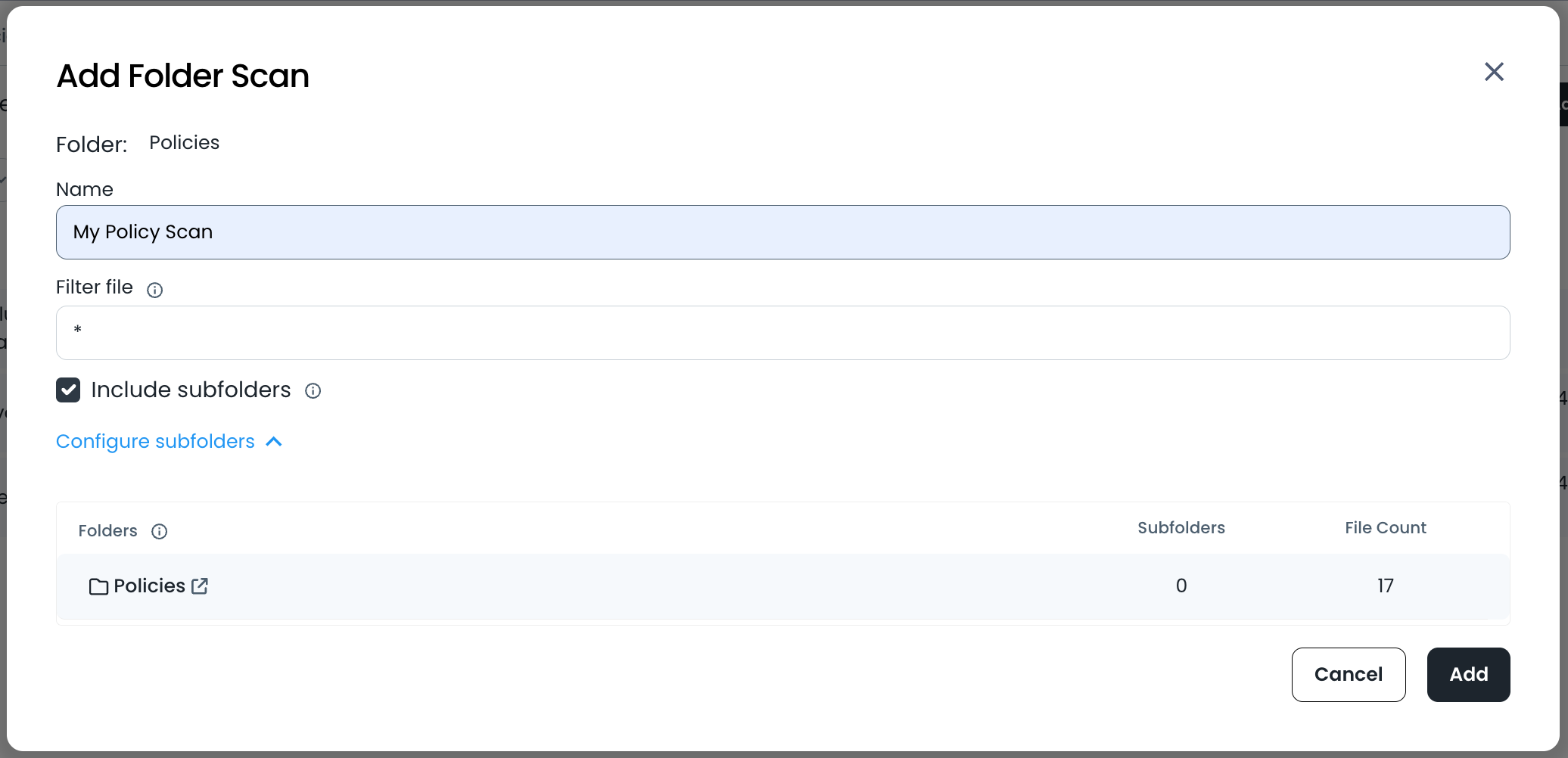
Add Policy Folder Scan
Policies will Appear as they are Discovered
When a scan begins, newly discovered documents appear in the Policies list.
During processing:
- Policies may display a “Generating policy details…” status
- Documents may initially appear using their file names
As analysis completes, Trustero:
- Assigns a normalized policy name
- Associates documents with existing policies when applicable
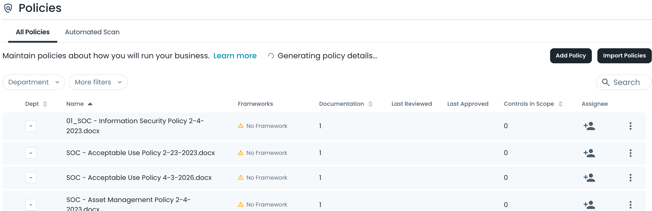
Policies Documents Grouped and Analyzed
After the folder scan is complete:
- Related documents are grouped under a single policy
- The most recent document is used to generate the policy summary
If available, the following metadata is displayed:
- Last reviewed date
- Last approved date
The most recent detected date is used as the policy’s overall approval date.