![Trustero_Logo_RGB_1C.png]](https://support.trustero.com/hs-fs/hubfs/Trustero_Logo_RGB_1C.png?height=40&name=Trustero_Logo_RGB_1C.png)
Access Management / Access Requests & Permissions
This tab lets approvers review incoming requests and approve or deny them. Note that document access requests only occur if one or more documents are marked as "Restricted". If documents are only marked "Confidential", access will be automatically granted once the user accepts the non-disclosure agreement.
If the Trustero Intelligence feature is enabled for visitors, there may be requests to access the TI functionality separate from accessing restricted documents.
Getting Started
- Trust Portal Publishers, Trust Portal Approvers (or Admins) go to the app; navigate to Customer Trust / Access Management
- In order to be notified when there is an incoming access request, make sure to add your email address in the Notification Emails tab in the Access Management page
- If there are pending access requests, you will see them in the Access Requests tab, where you can approve or deny the request
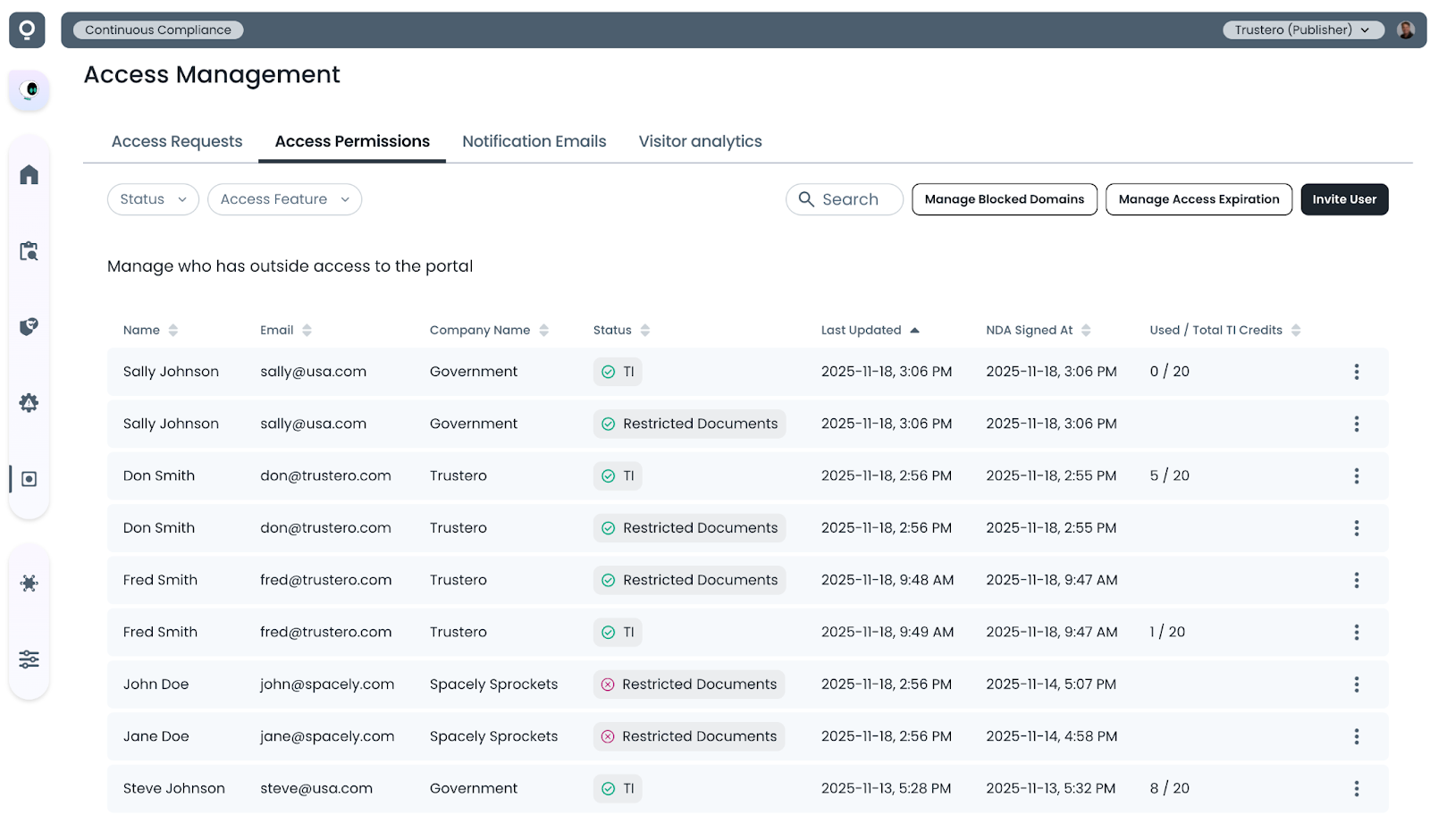
- Approved requests are moved over to the Access Permissions section of the page where all active access grants are listed
- Denied requests are hidden on the Access Request list by default, but can be seen by changing the default list filter to include all requests
- To revoke a previously granted request, select the request in the Access Permissions tab and chose "Revoke" from the item menu
Invite User
If you would like to directly invite (and pre-approve) a user to view documents on your Trust Portal, click on the Invite User button and pre-fill in the information about that visitor. You can pre-approve access to both documents and Trustero Intelligence for that user.
The user will still be required to accept the non-disclosure agreement before downloading any of the confidential or restricted documents.
Manage Blocked Domains
If you would like to automatically block request from specific domains (e.g. from public email accounts), you can manage the list using the "Manage Blocked Domains" button on the Access Requests or Access Permissions tabs.
Users requesting access from a blocked domain will be told the email domain is not supported for requests.
Manage Access Expiration
If you would like to automatically revoke access grants after a number of days, you can manage that from the "Manage Access Expiration" button on the Access Requests or Access Permissions tabs.
This dialog lets you set the number of days visitors will be granted access to the documents or Trustero Intelligence section of the visitor portal.
Example Page