![Trustero_Logo_RGB_1C.png]](https://support.trustero.com/hs-fs/hubfs/Trustero_Logo_RGB_1C.png?height=40&name=Trustero_Logo_RGB_1C.png)
Content Management / Documents
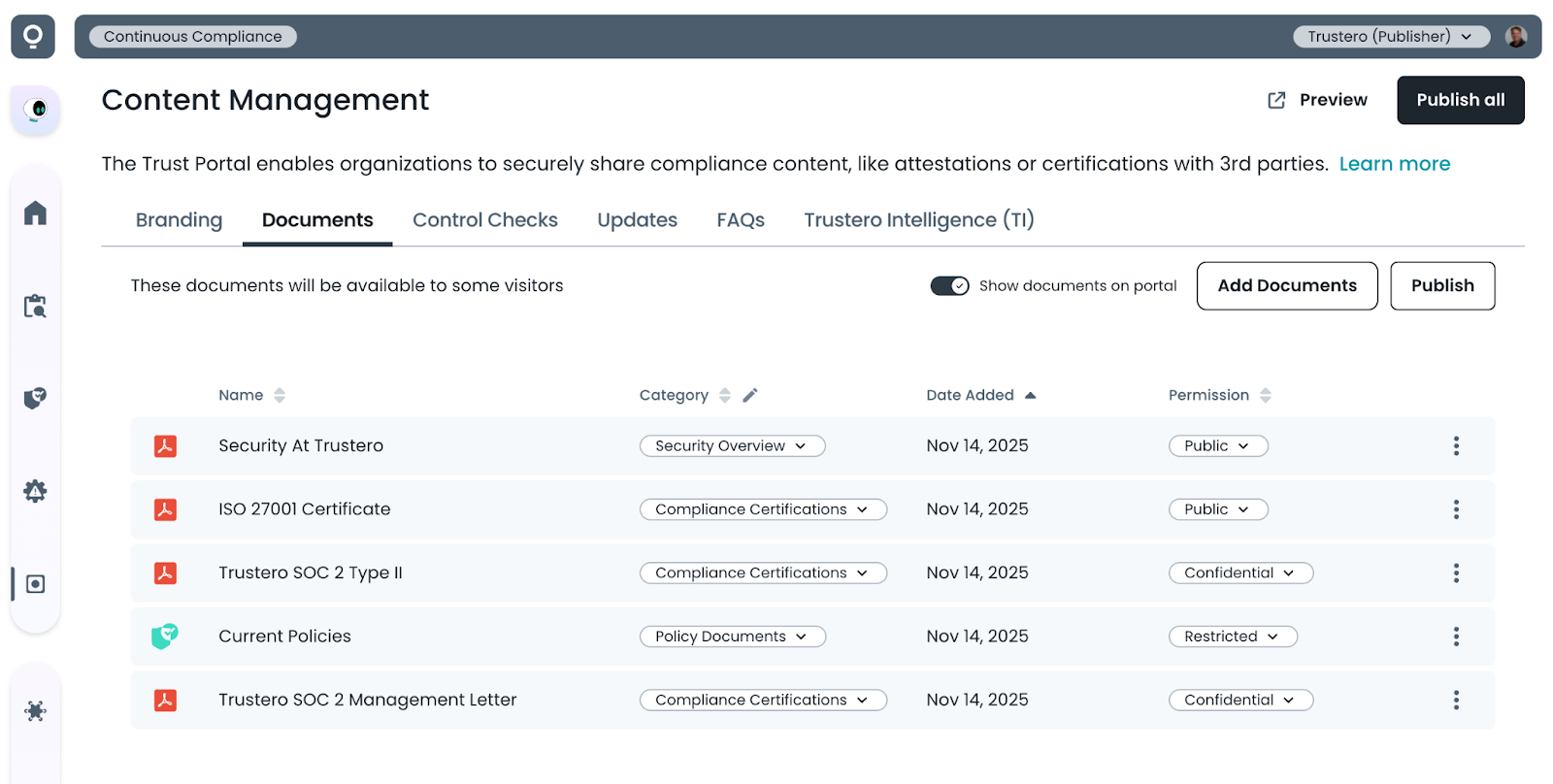
This tab lets publishers manage the compliance documents that are being shared with approved visitors. If the Trustero Intelligence feature is enabled for visitors, they will be able to use AI to ask questions about the published documents once they have been granted access.
Getting Started
- Trust Portal Publishers (or Admins) go to the app; navigate to Customer Trust / Content Management / Documents tab
- Upload one or more documents to be shared on the portal
- Assign permissions for each document (Public, Confidential or Restricted) - see below for details
- Assign documents to categories (optional)
- Enable document visibility on portal (click the "Show documents on portal" toggle)
- Preview site to make sure documents and groups are correct
- Publish document changes (if other features are going to be enabled, you may want to wait until the entire portal is configured before clicking Publish All)
- Site visitors can now request access to non-public documents - see request steps below
Documents and Categories
Documents can be uploaded one at a time, and assigned to a category. The "pencil" icon next to the category heading can be used to edit the list of available categories.
All uploaded documents should be in PDF format.
In addition to uploaded documents, there is an option to "Add Content from the Platform", which let's you bundle all selected policies or control summaries into a single PDF document to make available to visitors.
Document Permissions
Documents shared in the portal have one of the following permission levels:
- Public: can be downloaded by anyone who visits the page
- Confidential: can be downloaded only after validating email and accepting the non-disclosure agreement. This is self-service and requires no additional approval. All confidential documents downloaded will be watermarked with the name of the visitor's company.
- Restricted: can be downloaded after validating email, accepting the non-disclosure agreement and after the publisher approves the access request. All restricted documents downloaded will be watermarked with the name of the visitor's company.
Document Requests
When a visitor would like to access documents that are not public, they will first click the "lock" icon for any of the documents they would like to view.
Confidential documents will require that they sign an NDA. Restricted documents will require approval by the publisher.
Note that even though the lock appears next to each document, all confidential documents are unlocked with a single request, and all restricted documents are unlocked with a single approval.
The visitor will first be asked to provide their email address. At this point, we will ensure that their email domain is not in the blocked list (e.g. for free email domains).
We validate the visitor email address by sending a validated link to the visitor site in an email. Clicking on the link in the email will continue the document request.
If the user was previously granted access to documents, this flow will give them immediate access, otherwise, they will be required to accept the non-disclosure agreement before they can continue the request process.
Example Page