![Trustero_Logo_RGB_1C.png]](https://support.trustero.com/hs-fs/hubfs/Trustero_Logo_RGB_1C.png?height=40&name=Trustero_Logo_RGB_1C.png)
Linking Requests to Jira / ServiceNow Tickets
Any request can be used to create and link to a ticket in an external workflow system such as Jira or ServiceNow.
Before ticket creation becomes available, you must first configure the appropriate workflow receptor:
Navigate to Requests Page
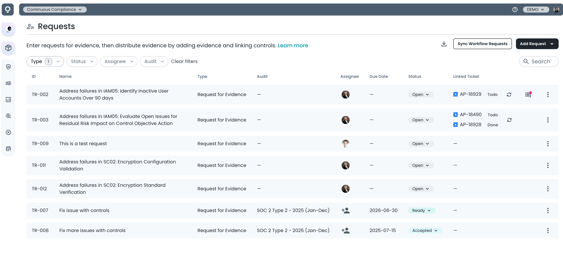
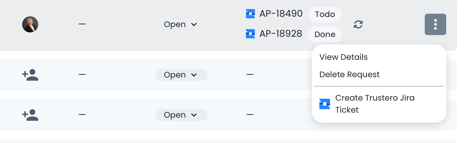
For any request, select the 3 dot menu to the right, and select Create Jira Ticket (the name is based on the name you used to configure the receptor).
To create a workflow task for a specific control, navigate to its show page.
Click the Create Workflow Task button under the Evidence Tab
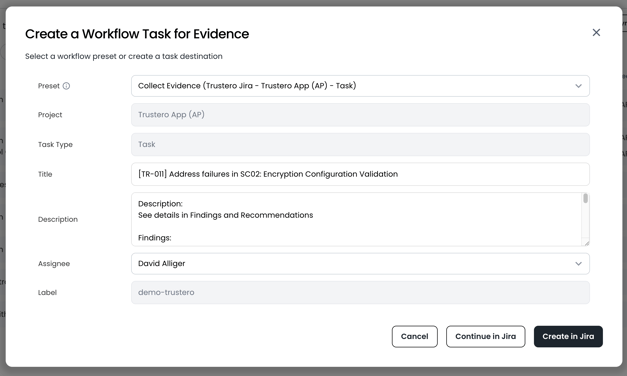
Select the destination project within the modal and then click Create in Jira to create the ticket immediately, or Continue in Jira to finish the ticket completion in Jira in a separate window.
You will be redirected to Jira in order to finish the issue. Usually it will require you to fill out additional fields.
- Summary / Title - This automatically pre-populated with the control tag.
- You can assign multiple controls for the ticket by adding control tags as follows:
- e.g. [TR-011] Address failures in SC02
- You can assign multiple controls for the ticket by adding control tags as follows:
- Note: It is critical for the issue to have the request reference in this format [Request ID] for it to be assigned to a request
- Description - Optional, Context for the ticket
- Reporter - Required
- Assignment - Required
- Label - This automatically pre-populated with the label assigned during configuration
- Note: Do not delete or change the label
Finally, click the Create button.
The issue will be created within Jira with the selected project and assigned to an individual for completion.
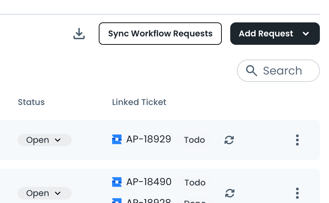
Sync Workflow Requests
In order to make sure that the ticket is attached to the request, and that the latest status is reported in Trustero, click on the "Sync Workflow Requests" button to scan the Jira system for the latest information, and to search for attached evidence.
Adding Attachments as Evidence
As long as the tickets are configured correctly (Title, Label) adding evidence is straightforward.
Attach the evidence file(s) to the ticket and set it to DONE.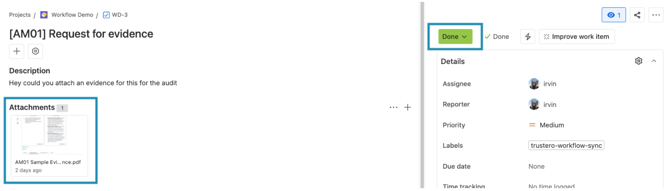
You can view the attachment within Trustero in the Request show page Evidence tab.
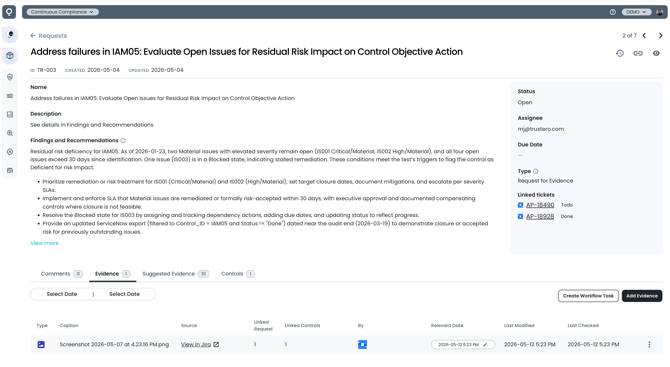
You can also visit the Control show page to view the evidence listing

Notes:
- You can still add attachments after the ticket is set to DONE. The integration will find and add the evidence the next time it syncs with Jira.
- You can add attachments to the comments section as it adds it to the ticket as well.
- If you want to delete the pulled evidence, You will need to delete it from the source ticket and the previous evidence/s within Trustero.